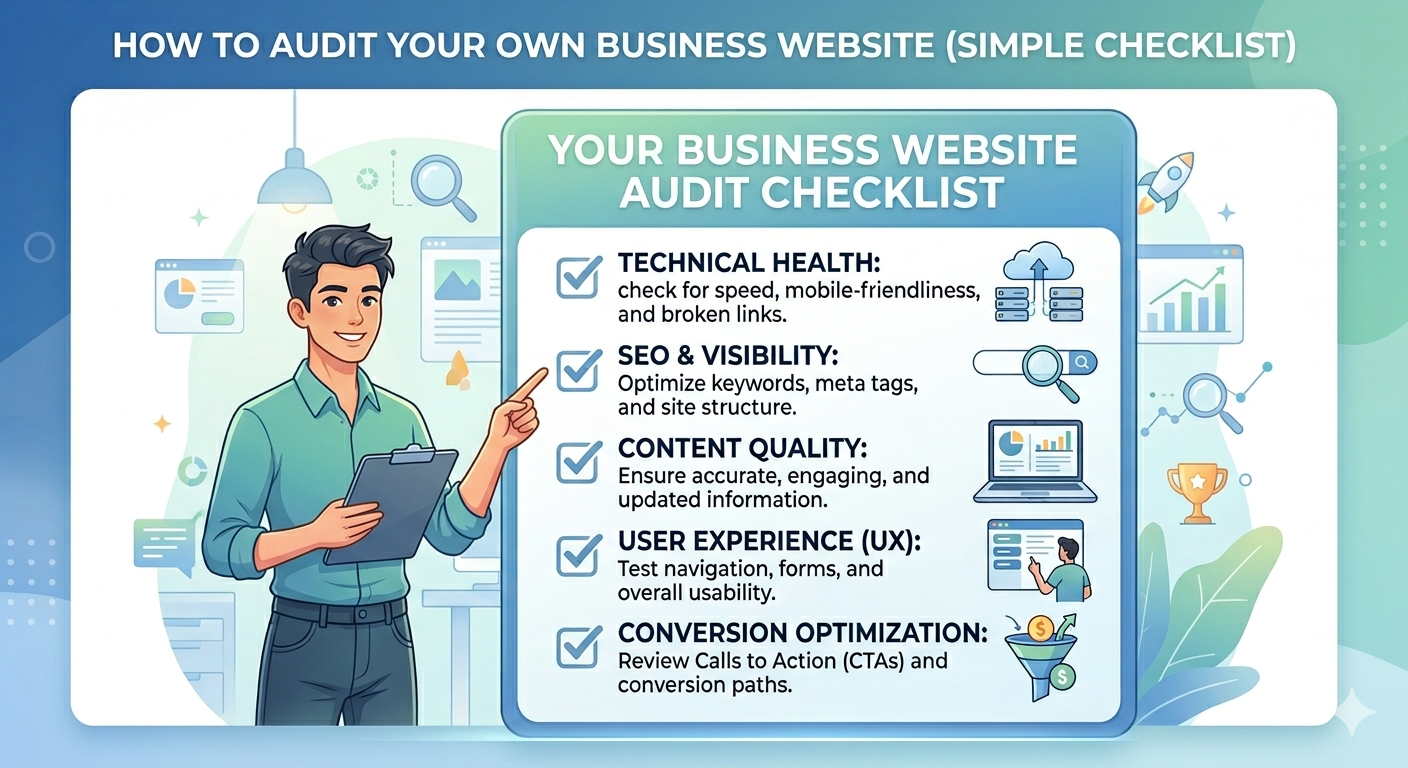
When a business owner reaches out to me about their website, the conversation usually starts the same way: “Something feels off, but I can’t figure out what.”
Sometimes traffic has dropped. Sometimes conversions stalled. Sometimes they just know the site feels slow but don’t have the technical vocabulary to explain why.
Here’s what I’ve learned after spending years inside WordPress installations, debugging performance bottlenecks, and cleaning up hacked sites: most website problems follow predictable patterns. Once you know what to look for, you can diagnose the majority of issues yourself—no developer required for the initial audit.
This isn’t a theoretical framework. It’s a practical checklist I’ve refined by actually opening up the hood on hundreds of sites. Use it to figure out what’s working, what’s broken, and what needs professional attention.
Before jumping into the checklist, let’s talk about how websites actually degrade.
A website isn’t a static thing you build once and forget. It’s a running system. Plugins update. PHP versions get deprecated. Database tables accumulate garbage. Security vulnerabilities emerge. And somewhere along the way, what started as a clean, fast website turns into something that takes six seconds to load and occasionally throws white screens.
The problem is that this degradation happens slowly. A 200-millisecond increase in load time every month doesn’t trigger alarms. By the time you notice something’s wrong, you’re looking at a site that needs significant corrective work.
A proper audit catches these issues before they impact your bottom line.
Start with performance because it affects everything else—SEO rankings, user experience, conversion rates, and even security (slow sites are often poorly maintained sites).
Open your site in an incognito window. Click around. How does it feel? This subjective check matters because it’s what your users experience.
Now get objective numbers. Run your site through:
What to look for:
First Contentful Paint (FCP) should be under 1.5 seconds. If it’s above 2.5, you’re losing visitors before they see anything meaningful.
Largest Contentful Paint (LCP) should be under 2.5 seconds. This is usually your hero image or main content block. High LCP almost always means image problems or render-blocking resources.
Total Blocking Time (TBT) should be under 300 milliseconds. High TBT means JavaScript is delaying interactivity—users click buttons that don’t respond immediately.
Why these numbers matter beyond SEO: Google uses Core Web Vitals as ranking factors, but that’s secondary. The real issue is that every second of delay reduces conversions by roughly 2–4%. On a site doing fifty leads a month, that’s one or two leads disappearing every month because your server took too long to respond.
Performance problems rarely start at the code level. Most often, they’re hosting problems.
Check your hosting setup:
I’ve seen legitimate businesses running WooCommerce stores on $5/month shared hosting with PHP 7.2. The site loads in eight seconds, and the owner can’t figure out why sales dropped. The hosting is the problem. Nothing else matters until that’s fixed.
Open your site’s Network tab in browser dev tools (F12 > Network > reload the page). Sort by file size. What’s the largest file?
If it’s an image over 500KB, that’s a problem. If it’s a PNG where a JPEG or WebP would work, that’s a problem. If you’re serving desktop-sized images to mobile users, that’s a problem.
The technical reality: Unoptimized images are the single most common performance issue I fix. WordPress has built-in image sizes, but themes and page builders often generate additional sizes you never use. Each image upload can create 10–15 unnecessary files, bloating your database and storage.
Search engines need to crawl and understand your site. If technical barriers exist, your content won’t rank regardless of how good it is.
Search Google for site:yourdomain.com. Does the number of indexed pages match what you expect?
Common problems:
noindex tags that should be indexableCheck your robots.txt file (yourdomain.com/robots.txt). Does it accidentally block important sections? I’ve seen sites that blocked entire categories or the entire wp-content directory, preventing search engines from loading CSS and JavaScript.
Open Google Search Console (if you don’t have it set up, stop everything and set it up). Look at:
Coverage report: How many pages are excluded? Why? “Crawled – currently not indexed” often indicates quality issues or canonical problems.
Core Web Vitals report: Which URLs are failing? Pattern matters. If your product pages all fail but blog posts pass, the problem is probably on your product page template.
Mobile Usability: Google indexes mobile-first. If your site has mobile usability issues, your rankings reflect the mobile experience, not desktop.
Run your homepage and key content pages through Google’s Rich Results Test.
If you’re a local business, you need LocalBusiness schema. If you’re selling products, you need Product schema. If you’re publishing articles, you need Article schema.
Why this matters: Structured data isn’t just about rich snippets. It helps search engines understand your content’s context. I’ve fixed local businesses that were showing up in the wrong city because their schema data was missing or incorrectly configured.
Most hacked sites I clean up share a common profile: outdated core, nulled plugins, or weak credentials.
Log into your WordPress admin. Look at the Updates page. What’s pending?
The hard truth about updates: I understand the hesitation. You’re worried an update will break something. But running outdated software is how sites get compromised. I’ve cleaned malware off sites where the owner was “waiting to test updates” for six months. The malware didn’t wait.
Check your Users list. Are there accounts you don’t recognize? Old freelancers who still have admin access? Generic accounts like “admin” with weak passwords?
Delete what you don’t need. Reset passwords for what remains. Force all users to use strong passwords or two-factor authentication.
This requires deeper access, but check for:
If you find anything suspicious, stop the audit and get professional help. Malware removal isn’t a DIY job unless you’re comfortable with server-level forensics.
A technically perfect site that doesn’t convert is just an expensive brochure.
Open your site on an actual phone. Not responsive testing tools—an actual mobile device.
If you’re using a page builder that outputs massive mobile layout shifts, users will abandon your site before they find what they need.
Test every form on your site. Not just whether they submit, but whether:
I can’t count how many times I’ve discovered a business’s contact form was broken for three months and they were wondering why leads dropped off.
This is the non-technical but essential part of the audit.
Within three seconds of landing on your homepage, can a visitor answer:
If you can’t answer those questions clearly, visitors bounce. No amount of SEO will fix unclear messaging.
Finally, check your maintenance systems.
Do you have backups? More importantly: have you tested them?
A backup that hasn’t been tested isn’t a backup. It’s wishful thinking.
Check:
Who handles updates? How often? Are security advisories monitored?
If you don’t have a maintenance process, you’re running on luck. Luck runs out eventually.
I offer WordPress Maintenance Services specifically because most business owners don’t want to think about updates and security monitoring. They want their site to work. But if you’re handling maintenance yourself, you need a system—not just checking when you remember.
Once you’ve completed the checklist, you’ll have a list of issues. Prioritize them:
Critical (fix immediately):
High priority (fix within days):
Medium priority (schedule within weeks):
Low priority (monitor):
Some audit findings require professional expertise:
The most expensive website isn’t the one you pay a developer to build. It’s the one you let degrade until it stops working.
This audit checklist is meant to be practical—something you can work through in an afternoon. If you find issues, you have options. Some you can fix yourself. Some you’ll want professional help with. The important thing is knowing where your site stands so you can make informed decisions about what to fix and when.
Most business owners never look under the hood until something breaks. Don’t be most business owners.





Online • Typically replies in minutes